You set up your listing, clicked “Get verified,” and now you’re stuck waiting on a google my business verification code that hasn’t shown up. Or it showed up and Google says it’s wrong. Either way, your profile stays half-live until you sort it out.
This guide covers the whole process. You’ll see how the verification code works, which method Google may offer you, how long each one takes, what breaks a code, and how to spot the scams that target business owners at exactly this stage.
One quick note on names. Google retired “Google My Business” years ago and now calls the product Google Business Profile. Most people still search for the old name, so you’ll see both here. The verification process is the same either way.
Quick Answer
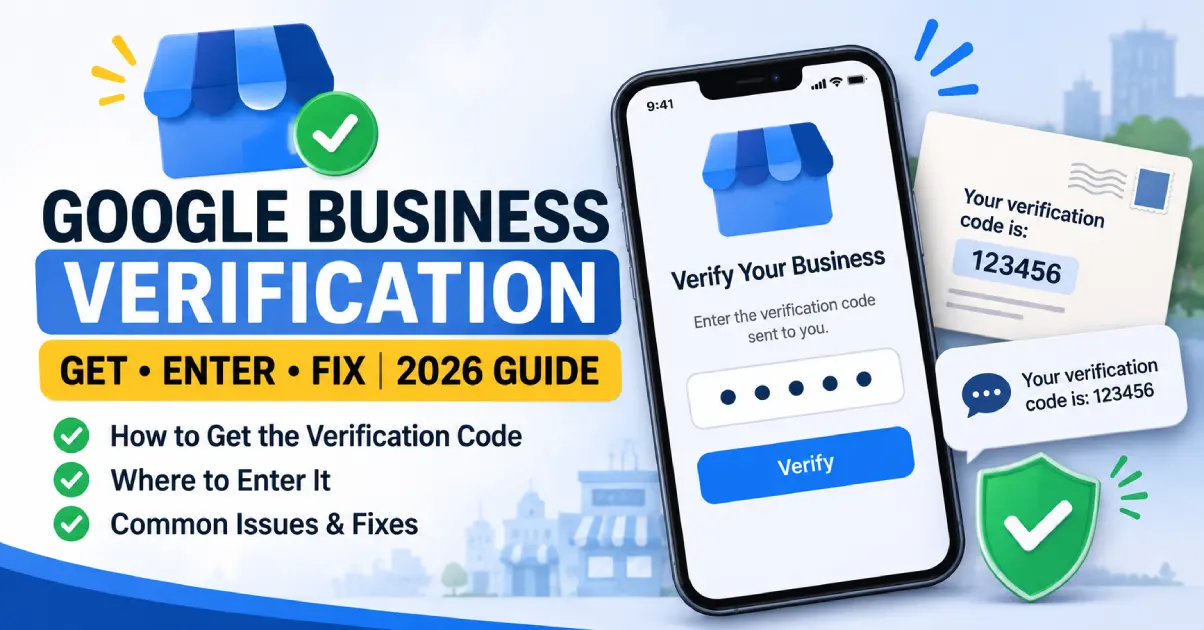
A Google My Business verification code is a short code Google sends by postcard, phone, text or email to prove you control a business listing. Google now calls the product Google Business Profile. Request the code under Get verified, enter it in your profile, and select Submit. Postcard codes usually arrive within 14 days and expire after 30 days.
What Is a Google My Business Verification Code?
A verification code is a one-time code that proves you’re connected to the business you claim to run. Google uses it before it lets a profile show up fully in Search and Maps, and before you can manage things like hours, photos, posts and reviews.
Without it, your profile can sit in limbo. You might see a “Get verified” banner, limited editing, and a listing that customers can’t trust or find easily.
Google My Business vs Google Business Profile
Google rebranded Google My Business as Google Business Profile in 2021 and now lets you manage listings straight from Search and Maps. If a guide tells you to “open the Google My Business app,” it’s out of date.
What hasn’t changed is the idea: Google needs proof that you’re real, that you’re at the address you listed, and that you have the right to manage the listing.
Why Google Asks for a Code at All
Fake listings have been a problem on Google Maps for years. Scammers claim addresses that aren’t theirs, spam the map with fake locksmiths and “plumbers,” and hijack real listings. Verification is Google’s main filter.
For you, that means a few minutes of hassle now protects your listing later. A verified profile is harder for someone else to take over.
How to Find Your Profile and the Get Verified Button
Before you can request a google my business verification code, you need to open the right profile while signed in to the right Google Account. That second part trips people up more than you’d think.
Try any of these:
- Search Google for my business while signed in.
- Search Google or Maps for your business name and city.
- In the Google Maps app, tap Business at the bottom right.
If you can’t see a profile, you’re probably signed in to a different account than the one that created the listing. Check any other Gmail or Workspace accounts you use for work.
Once you’re in, look for Get verified. If the button is missing, your profile may already be verified, or Google may be reviewing something. Don’t try to force it. Check the status message on the profile first.
Google My Business Verification Code Methods Compared
Here’s the part most guides gloss over: you don’t choose your verification method. Google decides which options appear for your business based on its own signals, and you can’t change that list. Some businesses see phone and text. Others only see a video request. Some still get a postcard.
Sometimes Google asks you to verify with more than one method.
| Method | How the code reaches you | Typical speed | Notes |
|---|---|---|---|
| Postcard | Mailed to your business address | Most arrive within 14 days | Not available to every business. Code expires after 30 days. |
| Phone call or text | Automated call or SMS to your business number | Minutes | You must answer the call or receive the text yourself. |
| Message to an address shown on the screen | Minutes | You need access to that exact inbox. | |
| Video recording | You record a live video in the app | Up to 5 business days for review | Must be recorded live on a mobile device. |
| Live video call | Video call with a Google rep | Same day, during business hours | Not offered to every business. |
| Search Console or bulk verification | No code, instant in some cases | Instant | Only for eligible profiles or chains. |
Postcard Verification
The postcard is the classic method. Google mails a card with a 5-digit code to the address you entered. You sign in, select Get verified, type the code in the Code field, and select Submit.
It’s slow, but it works well for storefronts and offices that get mail reliably. Google’s rules for waiting are strict, and we’ll get to them below, because most failed postcards fail for the same few reasons.
Address Details That Help a Postcard Arrive
- Enter the full street address, including the suite, floor or unit number.
- Add a contact name so the card reaches a real person.
- Make sure whoever handles your mail knows to expect it.
- Skip P.O. boxes and mail drops. Google’s guidelines expect a real business location, and these tend to cause problems.
Phone or Text Verification
If you’re eligible, this is the easy one. Google calls or texts the business phone number on your profile, and you enter the code on screen.
Google is blunt about one thing: you need to be able to answer the call or read the text directly. Automated phone menus, known as IVR systems, won’t receive the code. If your business line rings into a “press 1 for sales” menu, the code goes nowhere.
Email verification
Some businesses see an email option. Google shows the address it will use, and you need access to that inbox. Open the message, follow the steps, and you’re done. If you don’t recognize the address on the screen, stop and sort that out before you click anything else.
Video recording verification
More businesses now get a video request, especially service-area businesses and anyone Google considers higher risk. You record the video live through your profile on a mobile device. Pre-recorded clips and files recorded offline aren’t allowed.
Google’s video needs to show three things:
- Your location, such as outside signage or a street sign that matches your profile address.
- Your business or equipment, such as your storefront, tools, branded vehicle or workspace.
- Proof you manage the business, such as employee-only areas, a cash register, keys, or a business document like a permit or utility bill that matches your profile name.
Keep it to one continuous take. Don’t edit it. Keep sensitive information off camera, including bank details, ID numbers and other people’s faces. Most guides suggest 30 seconds as the floor and a couple of minutes as plenty.
After you upload, Google can take up to 5 business days to review it, and sometimes longer.
Video Tips for Service-Area Businesses
If you’re a plumber, electrician, cleaner or locksmith, you may not have a storefront. Start outside at your registered address if you have one, then show your branded van, tools, uniform and a job document or invoice that carries your business name. The goal is simple: prove the business exists and that you run it.
Live Video Call Verification
Some businesses can verify through a live call. It’s only available during your location’s business hours, you need to be at the business, and you start with a text chat with a Google representative who then moves you to video. Have your signage, equipment and proof of management ready before you start.
Instant Verification Through Search Console
In some cases, verifying your website in Google Search Console can verify your profile instantly, and bulk verification exists for chains. Neither is guaranteed. If your profile qualifies, you’ll see it in the options.
Step-by-Step Guide: How to Request and Enter Your Google My Business Verification Code
These steps match the current flow. Menus shift over time, so use the labels as your guide.
Request and Enter a Postcard Code
- Sign in to the Google Account that manages your profile.
- Find your profile on Search or Maps and select Get verified.
- Choose Postcard if it’s offered.
- Check the address character by character. Fix typos before you request.
- Request the code and add a contact name if asked.
- Wait. Don’t edit your profile or request another code.
- When the card arrives, go back to your profile and select Get verified.
- Type the 5-digit code in the Code field and select Submit.
Verify by Phone, Text or Email
- Open your profile and select Get verified.
- Choose Phone, SMS or Email, whichever Google shows.
- Make sure you can answer the phone or open the inbox right now.
- Request the code.
- Enter it in your profile when it arrives.
Verify by Video
- Open your profile on a phone or tablet and tap Get verified.
- Select the business video option and read the requirements.
- Plan your route: outside first, then inside, then proof of management.
- Tap Start recording and film everything in one take.
- Review the clip, tap Try again if something is missing, then upload.
- Wait for Google’s review.
Tip: Walk the route once without recording. Most rejected videos miss a requirement, not a camera setting.
How Long Does Google Business Profile Verification Take?
It depends on the method. Here’s a realistic range:
| Method | What to expect |
|---|---|
| Phone, text or email | Usually minutes |
| Search Console or bulk | Instant, when available |
| Live video call | Same day, in business hours |
| Video recording | Review can take up to 5 business days, rarely longer |
| Postcard | Most arrive within 14 days, then you still have to enter the code |
After you finish any method, Google says its review can take up to 5 business days.
Postcards take the longest because they depend on the postal service, and international addresses can take longer still. If you need to go live fast, ask whether you see another option on the verification screen. You can’t pick one, but you can use whichever Google offers.
What to Do While You Wait for Your Verification Code
This section matters more than anything else in the guide. Most postcard problems start with a well-meaning owner who “fixes” something while waiting.
Don’t:
- Edit your business name, address or category. Google says the code won’t work if you do.
- Request a new code. A new request invalidates the code already in the mail and sends a fresh one, which can stretch the process out.
- Share the code with anyone, including agencies or freelancers who help manage your profile
Do:
- Gather your photos, hours, service list and description so you can finish the profile the same day you verify.
- Tell whoever opens the mail to look for a card from Google.
- Set a reminder for day 14.
Picture a dentist who requests a postcard, then notices the suite number is wrong and corrects it on day six. The card shows up on day ten and the code fails, because the profile no longer matches the request. Two weeks gone, back to square one.
Google My Business Verification Code Not Received
Work through this list in order before you request anything new.
- Count the days. Google says most postcards arrive within 14 days. Before day 14, waiting is the right move.
- Check the address on your profile. One wrong digit or a missing suite number is the top reason cards go astray.
- Ask around. Check with your office manager, building front desk and neighbors in shared buildings. Cards are easy to mistake for junk mail.
- Check other options. Look at the verification screen for phone, text, email or video. If one appears, use it.
- Confirm phone and email access. For call and text codes, make sure you can answer the business line directly and that it isn’t routed to an automated menu.
- Contact Google Business Profile support. If you’ve passed 14 days and nothing arrived, support is the next step. Google lists support contact as the route for postcard issues.
If you request a replacement, treat it as a fresh start. Don’t touch your profile details again until the new code is entered.
Google My Business Verification Code Not Working or Expired
A code that arrives but won’t work usually has one of these causes:
| Problem | Why it happens | What to do |
|---|---|---|
| Code expired | Postcard codes expire after 30 days | Request a new postcard and enter it quickly |
| Profile edited while waiting | Changing the name, address or category breaks the code | Request a new code and leave the details alone |
| Newer code requested | A second request invalidates the first | Use only the latest code |
| Address changed | Each code is tied to the location and address you provided | Use the code requested for your current address |
| Wrong account or profile | You’re signed in to another account or location | Switch accounts and open the right location |
| Typo | Easy to mix up characters | Re-enter it carefully |
If “Get verified” shows up again after you enter a code, Google couldn’t fully verify the profile. Try a different method if one is offered.
Google Business Profile Verification Scams
Verification is a normal, expected task, which is why scammers love it. They don’t need to invent a story. They just borrow yours.
What Scams Look Like
- A caller says they’re “Google” and claims your listing is “under audit” or “marked for review.”
- Someone asks you to read back the code from your postcard or text.
- A mailer tells you to call a number right away or your listing will be suspended.
- A “specialist” says you must pay to keep your listing active.
What Google Says
Google’s help page states that Google will never ask for your verification code, and that you shouldn’t share it with anyone, even people who manage your Business Profile. Real verification starts inside your own profile, not with an unsolicited call.
There’s one wrinkle. Phone verification does involve an automated call, but you trigger it yourself from the verification screen, then enter the code on Google’s own page. Nobody calls out of the blue asking you to read digits aloud.
If You Get a Postcard for a Business You Didn’t Request
Don’t share the code or call numbers printed on the card. Someone may be trying to claim a listing tied to your address. Check your Google Account and profile directly, and report anything suspicious through Google’s support channels.
Common Mistakes That Delay Verification
- Editing the profile while a postcard is in transit. The top cause of dead codes.
- Requesting a new code too soon. It cancels the one already on its way.
- Using an incomplete address. Missing suite or unit numbers send mail to the wrong door.
- Using a virtual office or P.O. box. These tend to fail Google’s checks.
- Routing the business line to an IVR menu. The phone code never reaches you.
- Signing in to the wrong Google Account. You’ll never see the code prompt.
- Rushing the video. Missing signage or proof of management leads to rejection.
- Letting the code sit. It expires 30 days after issue.
- Giving the code to a scammer or an overeager vendor. Never do this.
Best Practices for a Smooth Verification
- Use the same business name, address and phone number on your website, your profile and the major directories. Consistent details make your business easier to confirm.
- Pick a real location where your business actually operates, and make sure someone is there to receive mail or calls.
- Manage the profile from an account tied to a business email, such as info@yourbusiness.com, rather than a throwaway address. That’s my practical advice, not a Google rule.
- Use one account to manage the profile instead of juggling several.
- Have your categories, hours, services and photos ready, so you can finish the profile the day you verify.
- Enter the code as soon as it lands. Waiting until day 29 is a gamble.
- Write down the date you requested the code, so you know when to follow up.
Expert Tips
- Check the verification screen again later. Google decides which options you see, and they can change. If you only saw a postcard on Monday, look again midweek.
- Pick your primary category before you request a code, then leave it alone.
- Film your video in daylight. Signs and street names are easier to read, and a clear clip is easier to review.
- Bring a second person for the walkthrough. One reads the requirements out loud while the other films.
- Verify from an account the business will always control. A former employee’s personal Gmail causes headaches later.
- After you verify, add your agency or staff through the profile’s user settings instead of sharing logins. Never hand over the code.
- Keep dated screenshots of what you saw. They speed things up if you contact support.
Also Read: What is schema markup in SEO? A practical 2026 guide with examples
Frequently Asked Questions
1. What is a Google My Business verification code?
It’s a short code Google sends by postcard, phone call, text or email to confirm you control a business listing. You enter it in your Business Profile to finish verification. Once the process is complete, your business information becomes eligible to appear in Search, Maps and other Google services.
2. How long does it take to get a Google My Business verification code?
Phone, text and email codes usually arrive within minutes. Postcards take longer, with most arriving within 14 days. Video verification doesn’t use a code at all, but Google can take up to 5 business days to review it. Timing varies, so check your verification screen for your options.
3. What do I do if my Google My Business verification code doesn’t arrive?
Wait the full 14 days for a postcard first. Then confirm your address is complete, check with whoever handles your mail, and look for other methods on the verification screen. If nothing works, contact Google Business Profile support. Avoid requesting repeated codes, because each one cancels the last.
4. How many digits is a Google Business Profile verification code?
Postcard codes are 5 digits long. You type them into the Code field on your profile and select Submit. Codes sent by phone, text or email are entered in the same way. Always use the newest code you were sent, because older ones stop working.
5. Why is my Google verification code not working?
The most common reasons are an expired code (30 days), an edited name, address or category, a newer code that replaced the old one, or a code tied to a different address. Signing in to the wrong account also causes confusion. Request a fresh code and leave the profile alone until you enter it.
6. Can I verify my Google Business Profile without a postcard?
Yes, if Google offers another method. Depending on your business, that might be phone, text, email, video recording, a live video call, or instant verification through Search Console. You can’t choose which options appear, but you can use any that show up on your verification screen.
7. Can I request a new verification code?
Yes, but only when you need one. A new request invalidates the code already in the mail and may lengthen the process. Request a replacement if your code expired, never arrived after 14 days, or stopped working. Then wait for that new code without changing your profile.
8. Does a Google My Business verification code expire?
Postcard codes expire after 30 days. After that, you’ll need to request a new one. Enter the code as soon as it arrives. Also remember that each code is tied to the location and address you provided, so changing the address means only a code requested for the new one will work.
9. Why can’t I choose my verification method?
Google’s systems pick the available options automatically, and the list can’t be changed. The decision depends on factors like your business type and risk signals. Some owners see several options, others only one. Check the screen periodically, since the choices can change.
10. Is it safe to share my verification code with an agency?
No. Google says never to share the code with anyone, including people who help manage your profile. A legitimate agency can request access to your profile through the user permissions after you’re verified. If someone asks you to read the code over the phone, treat it as a scam.
11. Can I verify by phone if my business uses an automated phone menu?
Not reliably. Google warns that automated IVR systems won’t receive the code. You need to answer the call directly or receive the text yourself. If your main line runs through a menu, try another verification option or briefly route the line to a person.
12. What happens if I never verify my business profile?
An unverified profile gets limited visibility and fewer management options, and it’s easier for someone else to interfere with. Verification is how you secure the listing and get full control of it. Until you finish, your business information may not show up in Search and Maps as it should.
13. What should I do if I get a verification postcard I didn’t request?
Don’t enter the code, share it or call numbers on the card. It may mean someone is trying to claim a listing at your address. Check your Google Account and profile directly, and report the activity to Google Business Profile support.
14. How do I verify a service-area business with no storefront?
You’ll usually be asked for a video. Show your registered location or signage if you have it, your branded vehicle and tools, and a document with your business name. Record it live in one take on a mobile device. Service-area businesses can still verify and hide their address from the public.
Conclusion
Getting a google my business verification code is simple in theory and fiddly in practice. The method isn’t your choice, the postcard is slow, and one edit at the wrong moment can wreck the whole attempt.
The fix is mostly discipline. Use the right account, enter an accurate address, leave your profile alone while you wait, and enter the code the day it arrives. If something goes wrong, check the expiry date, the address and the account before you request anything new. And if anyone asks you to read your code aloud, hang up.